

WordPress 7.0 Release: What's New and What to Know Before You Update


The WordPress 7.0 Release, “Armstrong”, went live on May 20, 2026, and is being called the biggest update since the block editor launched back in 2018. If you’ve been using WordPress for a while, you know how rare it is for a release to genuinely change how the platform works, but this one does.
That said, with a big update comes real questions. What actually changed? Will my plugins still work? Do I need to do anything before I hit update? This post walks through it all in plain language.
Why does the version number matter?
WordPress releases major versions a few times a year. Usually, the numbering system is along the lines of 6.7, 6.8, or 6.9. Jumping to 7.0 signals a genuine milestone, rather than just another round of improvements. This release officially kicks off Phase 3 of the Gutenberg project, the long-term roadmap WordPress has been building toward since first launching the block editor.
Phase 3 focuses on workflows and collaboration, aiming to make WordPress work better for teams, not just solo site owners.
A new look and feel in the admin
The WordPress 7.0 release provides the site admin with a broader visual refresh. There is a new default color scheme, updated buttons and input fields throughout, and pages now fade into one another instead of jumping abruptly. It is a quieter, more modern feel overall. Nothing dramatic, but the kind of polish that makes spending time in the dashboard noticeably more pleasant.
Going deeper than the visual refresh, WordPress 7.0 replaces the old admin list tables with a feature called DataViews. If you have ever stared at that plain table of posts with a checkbox on the left, you know it has looked and worked the same way for over a decade. DataViews brings the interface closer to tools like Notion or Airtable. Switch between different layout views, filter and sort your content more easily, and move through your site much faster overall.
Searching for posts is noticeably faster, too. The new admin search feels near-instant compared to before.
Picture a marketing team managing a website with 800 blog posts across a dozen categories. In the old admin, finding a specific post meant scrolling, filtering, and waiting. With DataViews and the new search, the team can pull up exactly what they need in seconds and get back to work.
Rounding out the admin changes is the new Quick Command palette. Press a keyboard shortcut, and a small search bar appears, letting you jump to any page, post, setting, or action without clicking through menus at all. If you’ve used a similar feature in VS Code or Figma, the experience is the same. Small feature, big time saver.
Building and editing content
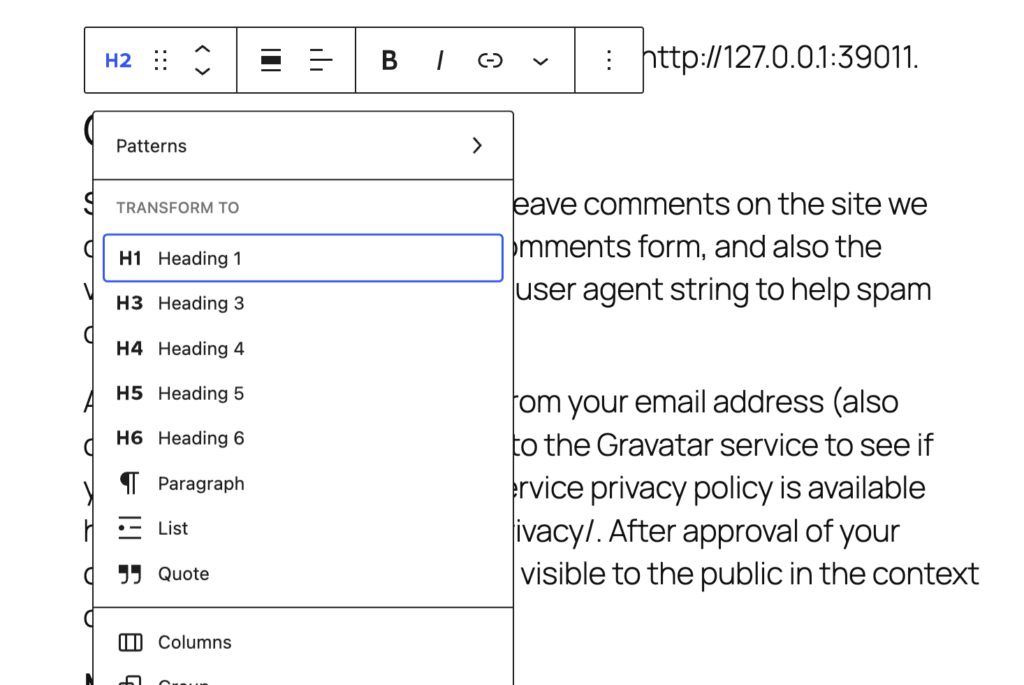
The block editor received a meaningful round of improvements in 7.0. Blocks behave more predictably, spacing and layout controls are more refined, and working with nested blocks is smoother than ever before. An example of the new text editor is below.
One of the more useful additions is visual revisions. When examining a post’s revision history, you can now scrub through a timeline slider and see a visual preview of what the content looked like at each saved point, with block-by-block markers showing exactly what changed. Instead of hunting through raw text to figure out what changed, you can scroll through a visual timeline and restore your desired version in one click. If you’ve ever needed to roll back a page and had no idea which revision was the right one, this saves a lot of guesswork.
Patterns improved significantly, too. Patterns are pre-built groups of blocks you can drop onto a page, with options like a hero section, a testimonial layout, or a call to action. In earlier versions, inserting a pattern would split it into individual blocks, forcing you to dig through layers to find what you needed. In 7.0, a pattern behaves as a single block. Just swap the text and images from the inspector panel and keep moving. One click on Edit Pattern provides deeper access. Building a page is now cleaner and easier.
WordPress 7.0 also ships a brand-new Navigation Overlay Builder with a dedicated canvas for designing your site’s navigation menu. No longer limited to a simple list of links, you can add columns, adjust font sizes, arrange elements visually, and start from a pre-built template or design one entirely from scratch. For anyone who has wanted more control over their site menu, this update delivers.
Finally, there is a new Icon block. Add icons anywhere on a page without needing a plugin, pick from a built-in library, and style them to match your design. It’s a small but long-requested addition that designers and developers will appreciate.
Better responsive design controls
WordPress 7.0 places controls directly into the block editor that allow you to show or hide any block based on screen size. Want a section to appear on desktop but not on mobile? Select the block, open the settings panel, and set it. No plugin, no custom CSS required.
The font library, previously only available in block themes, now works across all WordPress themes, including classic versions. Browse, install, and manage fonts directly from the editor regardless of what theme you’re running. If your site is on a classic theme and you have been managing fonts through custom CSS or a plugin, this simplifies your workflow considerably.
Team features
WordPress 7.0 allows you to leave comments directly on individual blocks inside the editor. Instead of emailing a colleague to say, “Can you rewrite paragraph three?“, just click on the block and leave a note right there, with an @mention for the person you want to see it. This feature works similarly to commenting in Google Docs.
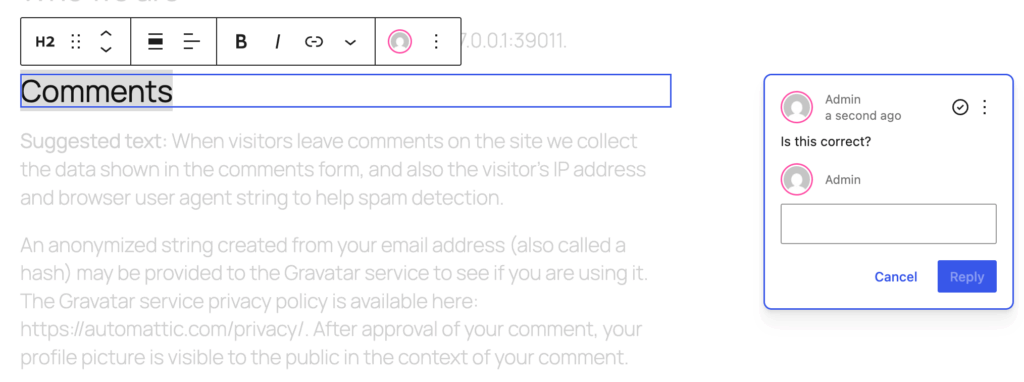
For an organization with a small content team requiring the executive director to review posts before they go live, feedback stays attached to the relevant paragraph rather than being buried in an email thread. The writer logs in, sees the note on the block, makes the edit, and resolves the comment. Clean and simple.
It’s worth noting that real-time co-editing was planned as a headline feature but was pulled twelve days before launch after the core team discovered a deep architectural problem. Rather than ship something unstable, they cut it entirely.
For now, Notes shipped as a consolation. Simultaneous editing has been pushed to a future release and may be revisited in the 7.1 cycle, though nothing is confirmed. If your team was counting on Google Docs-style collaboration inside WordPress, it is still on the roadmap, just not here yet.
AI foundations
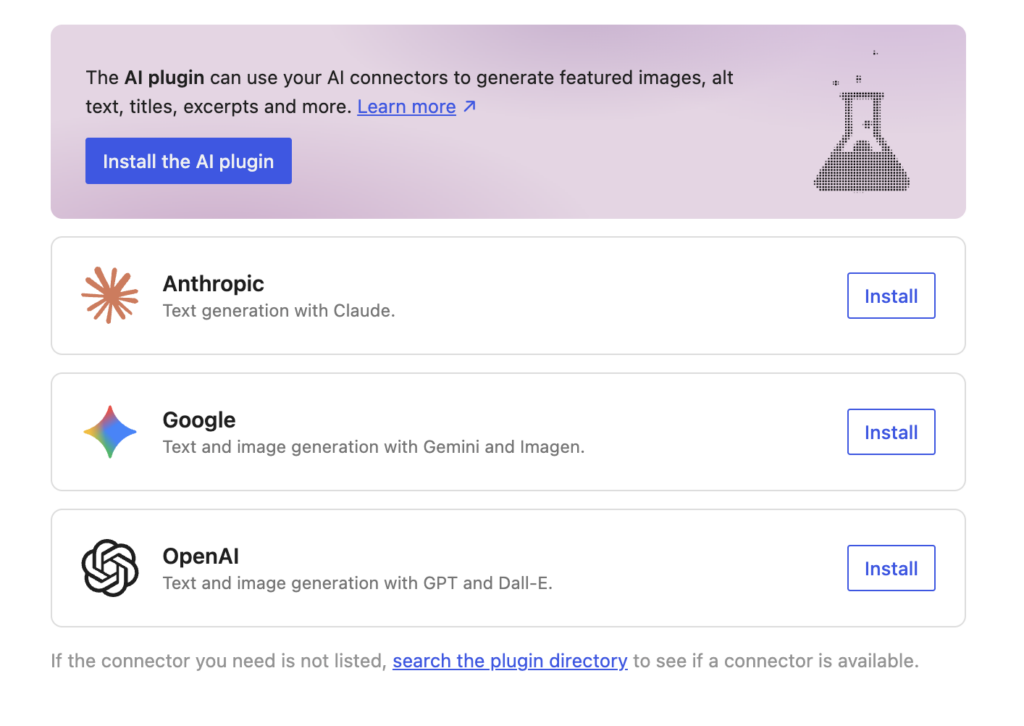
WordPress 7.0 also features a built-in AI framework called the WP AI Client. Until now, any AI features in WordPress have come from third-party plugins that all worked differently. The WP AI Client creates a standardized layer that any plugin can use to connect to an AI provider.
Three separate official provider plugins are available for Anthropic, Google, and OpenAI. Once installed and configured, any plugin that supports the framework can use it immediately. The optional AI plugin adds tools directly into the editor, including generating titles and excerpts, creating and editing images, and suggesting alt text for your media.
Think of it this way: instead of every AI plugin bringing its own power cord, WordPress now has one standard outlet built into the wall. Plugins just, well, plug in.
Beyond AI, any plugin requiring connection to an external service can tap into the same centralized connection system, making it easier to manage all your integrations from one place. Most users won’t notice much difference until plugins begin taking advantage of the framework, but it is this infrastructure that keeps AI in WordPress sustainable going forward.
Performance and accessibility
WordPress 7.0 also improves how image loading priority is handled, specifically to prevent hidden images in navigation overlays or interactive blocks from slowing the load of important above-the-fold content. On-demand block stylesheet loading in classic themes is more reliable, and scripts can now depend on script modules to reduce render-blocking.
On the accessibility front, 7.0 includes fixes across media management, improved usability for voice-control users, and enhanced color contrast in the refreshed admin. The editor ships with new blocks and improvements to navigation and interaction for assistive technology users. Not headline features, but they matter for building sites that work for everyone.
PHP version
The most important technical thing to know before you update is that WordPress 7.0 drops support for PHP 7.2 and PHP 7.3. The new minimum is PHP 7.4, and PHP 8.2 or higher is recommended.
PHP is the programming language WordPress runs on. If your hosting environment is running an older version and you update WordPress without checking first, you could end up with a broken site. Check your PHP version in the Site Health section of your WordPress dashboard before you update, and contact your host if you need to upgrade it before moving to WordPress 7.0.
PHP 8.3 or higher is required to use the full WP AI Client features.
For everything else in 7.0, PHP 7.4 will work.
In summary
WordPress 7.0 is not a flashy release. There is no single killer feature that will change your life overnight. What it does do is lay serious groundwork: a modernized admin, built-in AI infrastructure, better editorial workflows, faster search, and improved performance across the board.
The block editor feels more polished, the admin finally looks like it belongs in 2026, and smaller additions like visual revisions, the command palette, the icon block, and patterns as single blocks are the kind of quality-of-life improvements you do not realize you needed until you have them.
If WordPress has felt a bit stagnant over the last couple of years, this update signals the platform is moving again. For reasons outside the product itself, 2025 was a slower year for the project. 2026 looks like a different story, and 7.0 is a solid start.
The WordPress 7.0 release is a meaningful step forward for the platform, and whether you are ready to update today or still weighing your options, getting the details right matters. If you have questions about how this release affects your site, need help checking your PHP version, or want guidance on taking advantage of the new features, Fíonta is here to help. Reach out to our team with our contact form for more information.